
Blog /
Give a client a dashboard inside wp-admin without writing a plugin
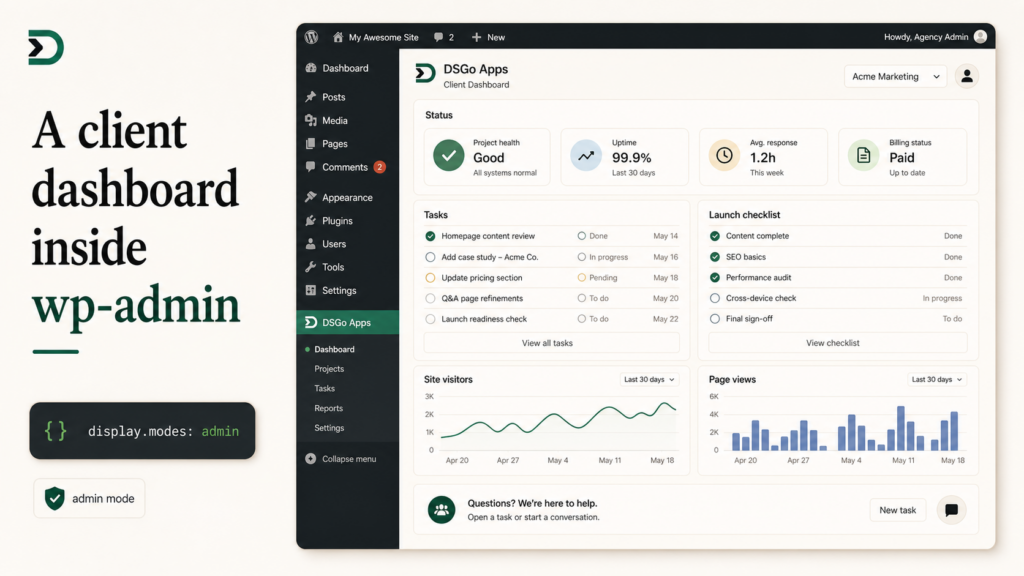
Most WordPress agencies eventually build a custom admin page. The client wants a “Status” tab in wp-admin. Or a project dashboard the agency uses while logged in as itself. Or a settings page for a custom feature that does not fit the standard plugin settings pattern.
The historical answer is a PHP plugin. You write add_menu_page or add_submenu_page, you templated a .php file, you wrote enqueue calls for your CSS and JavaScript, and you signed up for the maintenance burden of a plugin you now own.
The DesignSetGo answer is one line in the manifest:
"display": { "modes": ["admin"] }That is the whole admin-page integration. The app you already know how to build now also renders as a wp-admin submenu page. Same bundle, different host, same bridge.
This tutorial walks the flow. What admin mode looks like, how the bridge behaves inside the admin, and a 10-line agency-dashboard example you can ship today.
What admin mode actually does
When dsgo-app.json includes admin in display.modes, the runtime adds a submenu page under DesignSetGo Apps in wp-admin with the app’s display name. Clicking it renders your app inside an iframe (or inline, depending on isolation), inside the wp-admin chrome.
The chrome is real wp-admin: the admin bar at top, the menu on the left, the screen options and help tabs. Your app fills the content area. The user sees a normal WordPress admin page; you ship a static bundle.
You can also pin the page to a top-level admin menu if you want it more prominent:
"display": {
  "modes": ["admin"],
  "admin": {
    "menu": "top-level",
    "icon": "dashicons-portfolio",
    "position": 25
  }
}
The icon comes from the Dashicons set. The position is the standard WordPress admin menu ordering integer (5 is Posts, 25 is Comments, 70 is Users, etc.).
If you list multiple display modes (["block", "page", "admin"]), the app supports all three from one bundle. The admin menu entry appears for every installed app that includes admin mode, regardless of whether the same app also renders in posts or at /apps/{slug}.
The bridge behaves differently in admin
When your app runs in admin mode, four things are different from public-facing apps. They are differences your code should know about.
The visitor is always logged in. dsgo.user.current() always returns a user. No need to handle the “logged out” branch. If a logged-out person tries to load the admin page, WordPress redirects them to the login screen before your bundle even loads.
The visitor is, by default, a privileged user. They got to wp-admin. They have at least the read capability. Most apps in admin will be gated to edit_posts or manage_options because they should only be visible to staff. The runtime does not enforce this for you; you should add a capability check at the top of your app or use the manifest’s admin.required_capability field:
"display": {
  "modes": ["admin"],
  "admin": { "required_capability": "manage_options" }
}
If you set that, the menu item only appears for users with the capability, and a direct URL visit redirects to wp-admin’s “you do not have permission” page.
Storage scopes are still per-app and per-user. dsgo.storage.user.set(...) in the admin saves under the WordPress user viewing the page, scoped to your app. The admin and the public surface of the same app share storage (they are the same app), but two different apps cannot see each other’s storage.
The bridge can read everything the user can read. Admin users typically have broader visibility. Drafts, private posts, other users’ posts. Your dsgo.posts.list() calls return more results in the admin than they would on the public site for the same query, because the underlying WordPress query honors the visitor’s capabilities.
The 10-line agency dashboard
Here is a working example. An agency dashboard that lists the projects (custom post type project) for the logged-in user (the agency staff member), with a quick “open in client portal” link for each:
<!doctype html>
<html>
<head><meta charset="utf-8"><title>Projects</title></head>
<body>
<h1>Your projects</h1>
<ul id="projects"></ul>
<script type="module">
  import { dsgo } from '@designsetgo/app-client';
  await dsgo.ready;

  const me = await dsgo.user.current();
  const projects = await dsgo.posts.list({
    type: 'project',
    author: me.id,
    per_page: 20,
    orderby: 'modified',
    order: 'desc',
  });

  const ul = document.getElementById('projects');
  for (const p of projects) {
    const li = document.createElement('li');
    li.innerHTML = `<a href="${p.link}">${p.title.rendered}</a> (${p.status})`;
    ul.appendChild(li);
  }
</script>
</body>
</html>
Manifest:
{
  "manifest_version": 1,
  "id": "agency-projects",
  "name": "Projects",
  "version": "0.1.0",
  "entry": "index.html",
  "display": {
    "modes": ["admin"],
    "admin": {
      "menu": "top-level",
      "icon": "dashicons-portfolio",
      "required_capability": "edit_posts"
    }
  },
  "permissions": { "read": ["posts", "user"], "write": [] },
  "runtime": { "sandbox": "strict", "external_origins": [] }
}
Deploy:
npx designsetgo apps deployLog into wp-admin. There is a “Projects” item in the top-level admin menu. Click it. Your agency dashboard renders inside wp-admin, listing the projects you authored, sorted by most recently edited.
A real agency dashboard would have more: a search box, status filters, the ability to filter by client, links to the client portal for each project. All of it is HTML and bridge calls. None of it is a PHP plugin.
When you want admin mode and when you do not
Use admin mode for:
- Internal tools for the site’s staff (project dashboards, content workflows, batch utilities).
- Settings UIs for an app that needs a “config” surface separate from its user-facing surface.
- Agency-built dashboards the client logs in to manage their own project.
- Anything that should not be reachable from the public-facing site.
Do not use admin mode for:
- Anything the public visitor should see. Use
pageorblockmode for those. - Apps that need to be discoverable through site search.
- Apps that should be indexable by Google.
The mental model: admin mode is for people who are already in wp-admin and do not want to leave. Public mode is for visitors who never see wp-admin at all.
What you stop having to build
If you have ever built a custom WordPress admin page in PHP, you know the litany:
- A plugin scaffold with the headers WordPress reads.
- An
add_menu_pageoradd_submenu_pagecall. - A
wp_enqueue_scriptandwp_enqueue_stylecall for every asset you want to load. - A
wp_localize_scriptcall to pass server-side data into the page (and the security review on what you are passing). - A nonce verification on every form post.
- A capability check at the top of the rendering function.
- A version-bumping habit so cached assets get reloaded after you change something.
None of that is in your DesignSetGo App. The bundle is the bundle. The manifest is the manifest. The bridge handles auth and data. There is no PHP for you to ship, no plugin to register, no version-bumping headache.
You also stop paying the plugin-author tax: a row in the plugin list the client can deactivate by accident, an update channel you have to maintain, a WordPress.org listing or a Freemius integration. The bundle is just files in the uploads directory.
Further reading
- The agency client portal, in one weekend: the consumer-facing complement to this admin tutorial.
- Build an agency client dashboard once and ship it to every WordPress site: the multi-site deploy version.
- MANIFEST.md
#display: the full manifest reference for display modes.