
Blog /
Build an agency client dashboard once and ship it to every WordPress site
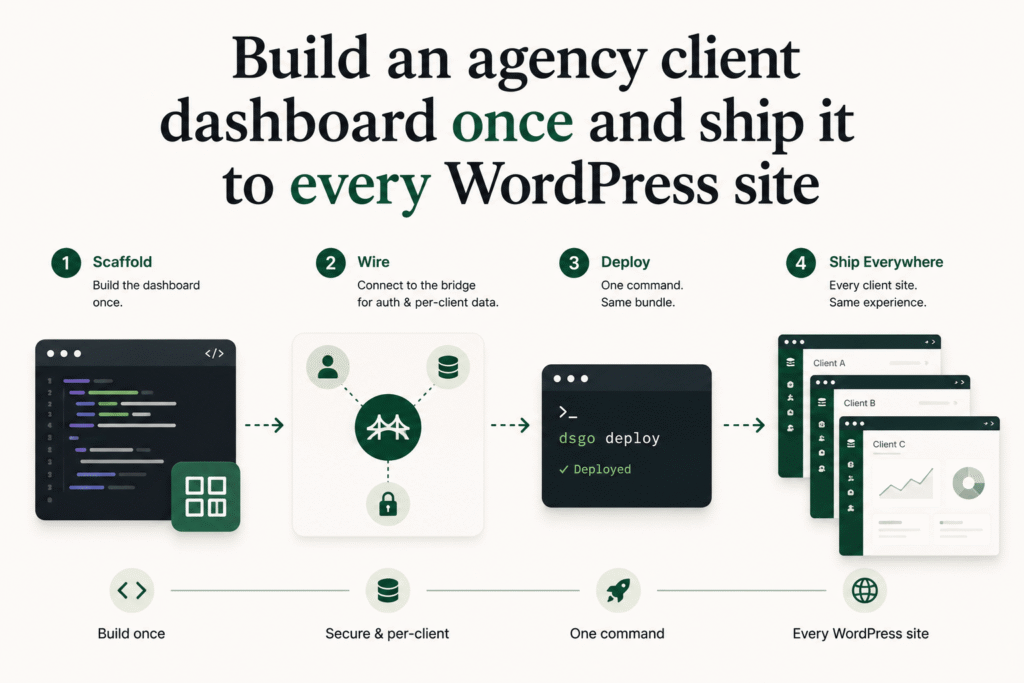
This is the agency flow. You run a small shop. You manage anywhere from three to thirty WordPress sites for clients, and you want each client to have a real portal they log into on their own domain. Today that usually means a shared Dropbox, a Notion link, a “client portal” SaaS on its own subdomain, or a hand-rolled page template you’re scared to touch. None of those feel like part of the agency’s work.
The DSGo path: you build one client dashboard. You declare what data it can read in your manifest. You deploy the same bundle to each client’s WordPress with one command. Each client sees their own data through their own login. When you push an update, you re-run the deploy and every site has the new version inside a minute.
This post walks the whole thing end to end. You’ll build a dashboard that greets the logged-in client by name, shows the project updates you’ve posted for them, and lets them drop a file back to your media library. It will run inside an iframe at /apps/client-portal/ on every client site, pulling per-client data through the bridge.
What you bring in
Three things on the agency side:
- A coding agent. Claude Code, Cursor, or Codex. We’ll start with
npx designsetgo apps initwhich drops a starter project with the typed bridge client and aCLAUDE.mdyour agent will read on open. - A static framework, your call. Anything that produces a
/distfolder works: Vite + React, Vite + Vue, SvelteKit static export, Astro, plain HTML. The bridge is framework-agnostic. The example in this post is plain HTML and JS so it fits on one screen, but the same bridge calls work inside a React component without changing. - A manifest.
dsgo-app.jsondeclares the permissions the dashboard wants on each client site and how it should render. This is what shows up in the install dialog when a client (or you, on the client’s behalf) installs the app.
On the client-site side, what’s already there:
- WordPress user accounts. You log in as the agency; the client logs in as themselves.
- WP roles and capabilities, which the bridge surfaces directly.
- A media library, which the bridge exposes as upload.
- The posts table, which you’ll use to publish status updates per client.
You don’t write a backend.
Scaffold the project
npx designsetgo apps init client-portal
cd client-portal
The starter drops an index.html, app.js, styles.css, dsgo-app.json, and a CLAUDE.md. If you open the folder in your editor with Claude Code or Cursor, the agent has the manifest format and the bridge surface in working context immediately.
Open dsgo-app.json and replace the contents with:
{
  "manifest_version": 1,
  "id": "client-portal",
  "name": "Client portal",
  "version": "0.1.0",
  "entry": "index.html",
  "isolation": "iframe",
  "display": { "modes": ["page"], "default": "page" },
  "permissions": { "read": ["user", "posts"], "write": [] },
  "runtime": { "sandbox": "strict", "external_origins": [] }
}
Two read scopes: user for “who is this and what can they do,” posts for “let me list the updates I’ve published in the client-updates category.” No write scope yet; the upload form uses dsgo.media.upload, which is a core opt-out method (no permission needed unless you’ve turned it off in the manifest). The install dialog will show one bucket: “Read content.” Boring on purpose. The site owner (your client, or you on their behalf) sees a single check.
Build the UI
In index.html:
<!doctype html>
<html lang="en">
  <head>
    <meta charset="utf-8" />
    <title>Client portal</title>
    <link rel="stylesheet" href="styles.css" />
  </head>
  <body>
    <main id="root">
      <header class="head">
        <h1 class="head__title">Hi, <span id="client-name">there</span>.</h1>
        <p class="head__lede">Your latest project updates and a place to drop files back to us.</p>
      </header>
      <section class="updates" aria-label="Project updates">
        <h2>Recent updates</h2>
        <ul id="updates-list"></ul>
      </section>
      <section class="files" aria-label="Send files">
        <h2>Send us a file</h2>
        <form id="upload-form">
          <label for="upload-input">Pick a file to upload</label>
          <input type="file" id="upload-input" />
        </form>
        <p id="upload-status" role="status"></p>
      </section>
    </main>
    <script src="app.js" type="module"></script>
  </body>
</html>
In app.js:
const dsgo = window.dsgo;
async function main() {
const user = await dsgo.user.current();
if (!user || !user.id) {
document.getElementById('root').innerHTML =
'<p>Please <a href="/wp-login.php">sign in</a> to view your portal.</p>';
return;
}
document.getElementById('client-name').textContent = user.name;
await renderUpdates();
document
.getElementById('upload-input')
.addEventListener('change', onUpload);
}
async function renderUpdates() {
const { items } = await dsgo.posts.list({
category: 'client-updates',
per_page: 5,
orderby: 'date',
order: 'desc',
});
const list = document.getElementById('updates-list');
list.innerHTML = items
.map(
(p) =>
`<li><a href="${p.link}">${escape(p.title)}</a> ` +
`<time>${new Date(p.date).toLocaleDateString()}</time></li>`,
)
.join('');
}
async function onUpload(e) {
const file = e.target.files[0];
if (!file) return;
const status = document.getElementById('upload-status');
status.textContent = 'Uploading...';
try {
const result = await dsgo.media.upload(file, { filename: file.name });
status.textContent = `Got it. We have ${escape(result.filename)}.`;
} catch (err) {
status.textContent =
err && err.code === 'permission_denied'
? 'Uploads are turned off for your account. Sign in and try again.'
: 'Upload failed. Please try again or email us directly.';
}
}
function escape(s) {
return String(s).replace(/[<>&]/g, (c) =>
c === '<' ? '<' : c === '>' ? '>' : '&',
);
}
main();
Four bridge calls total: user.current, posts.list, media.upload, plus the bridge handles the auth check inside user.current. No SMTP. No database. No file-upload endpoint. The WordPress site you’re deploying onto has the user table, the capabilities, and the media library; the bridge surfaces them.
The “recent updates” section pulls posts from a client-updates category on each client’s site. Your agency workflow: log into the client’s wp-admin, write an update, file it in client-updates, hit publish. The client sees it in their portal on the next refresh. The bridge applies WordPress’s normal visibility rules, so drafts stay drafts.
The upload form drops files straight into the client’s WP media library. The file is owned by the uploading visitor and tagged with the source app id (_dsgo_apps_source_app post meta) so your agency staff can filter for “everything the client portal sent” in Media → Library. Defaults to image types; broaden via the dsgo_apps_media_allowed_mimes filter on the client’s site if they need to send PDFs or zips.
Set up the client’s WordPress
Two one-time steps per client site, both five minutes:
- Create a
client-updatescategory in their wp-admin. Just go to Posts → Categories and add it. Slug should beclient-updatesto match the manifest above. - Make sure the client has the right WP capabilities. A standard Subscriber role can read posts but can’t upload. If you want the client to be able to send you files via the portal, bump them to Author (or grant the
upload_filescap with a small mu-plugin). The bridge follows WordPress’s normal capability rules; the dashboard doesn’t try to override them.
Both of these are recurring agency setup. Add them to your client-onboarding checklist; they’re a one-time tax per client, not per app update.
Deploy to your first client
npm run build
npx designsetgo apps deploy --site=client-one.com --build
The first deploy will prompt you for the client’s site URL and an application password. Generate one in their wp-admin (Users → Profile → Application Passwords). The CLI stores credentials in ~/.designsetgo/credentials.json; subsequent deploys to the same site skip the prompt.
Open https://client-one.com/apps/client-portal/ while logged in as the client (or use a private window logged in with a client test account). The dashboard renders. Their name shows up. The updates list pulls from the client-updates category. The upload form drops a file into their media library. Log out and reload, and the sign-in prompt appears.
Deploy to every client at once
The Plus and Agency tiers support a --sites flag that takes a comma-separated list and runs the deploys in one command:
npx designsetgo apps deploy \
  --sites=client-one.com,client-two.com,client-three.com \
  --build
The CLI batches the build, then deploys to each site in sequence with one preflight check per site. If a deploy fails (network blip, plugin version mismatch), the batch reports per-site and continues; you can re-run the failures one at a time afterwards.
On the free tier or when you want explicit control, a four-line bash loop does the same job:
SITES=("client-one.com" "client-two.com" "client-three.com")
for site in "${SITES[@]}"; do
  npx designsetgo apps deploy --site="$site" --build
done
The CLI is idempotent: running it twice with the same bundle is a no-op on the second pass. For production agency workflows, this loop usually lives in a GitHub Action triggered on push to main. There’s a separate post on the GitHub Action workflow; the gist is the same loop with secrets injected per client.
Update everywhere
Six weeks in, a client asks for a “request a change” section on the dashboard. You add the form to app.js, wire it to dsgo.email.send with your agency’s address as the recipient (after adding email to the manifest’s read scope and an allow-list block to the manifest’s runtime), bump version in dsgo-app.json, and re-run the deploy batch. Every client site has the new version inside a minute.
If one client wants to pin to the old version, the CLI keeps the previous bundle in their plugin’s app directory until it’s cleaned up. For most agencies the “newest version wins” model is fine; for regulated clients you’d skip them from the batch and deploy on their schedule.
What you didn’t write
- An auth layer. WordPress already has one. The dashboard reads
dsgo.user.current()and renders accordingly. The sign-in link points atwp-login.php, which works whether the client uses default WP login, a custom login plugin, or SSO. - Per-client backends. Same code reads each site’s users, posts, and media through the bridge. Each deploy is scoped to one site; nothing crosses sites.
- A file upload endpoint.
dsgo.media.uploadhandles the multipart, the nonces, and the capability check. Files land in the client’s media library, tagged so you can find them. - An update mechanism. Each client install lives as a versioned bundle inside their plugin folder; the next
apps deployregisters the new one. - A capability system.
dsgo.user.can('cap')runs the same check WordPress would. If the client’s role got demoted, the relevant features hide themselves.
What this deliberately doesn’t do (v1)
- It doesn’t list the files the client has uploaded.
dsgo.media.listis reserved for a future release; for v1 your agency staff sees uploaded files in Media → Library filtered by the source app tag. - It doesn’t span a multisite network with one deploy. Each subsite in a multisite is its own deploy target.
- It doesn’t whitelabel automatically. The plugin row still says “DesignSetGo Apps” in the WP plugins list unless you’re on Agency tier with white-label enabled. The white-label post covers what that surface looks like.
- It doesn’t show WooCommerce orders, subscriptions, or invoices. Those are separate
commercescopes and a separate UI; the shop dashboard post covers them.
Where to go next
The bridge API reference for the full user.*, posts.*, and media.upload surface, including all the error codes and limits.
The bridge cookbook for the user, posts, and media patterns side by side.
The GitHub Action post for the multi-client deploy loop in CI.
The white-label post for the Agency-tier branding overrides.