
Blog /
Connect Claude Desktop to WordPress with MCP and Application Passwords
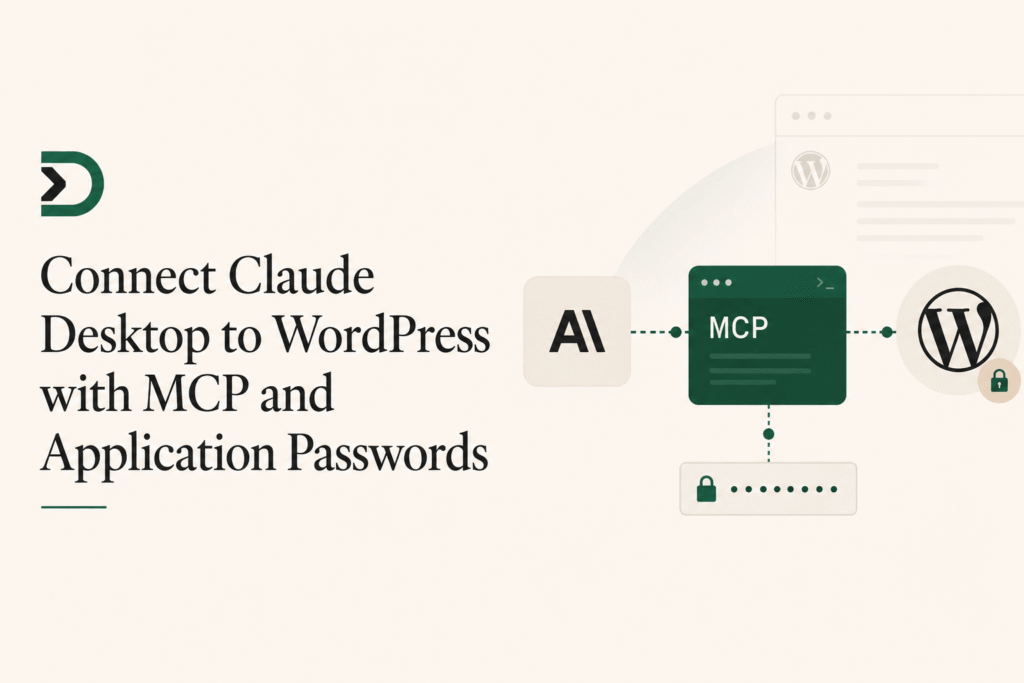
There are two pieces people accidentally collapse into one:
- MCP is the connection layer. It is how Claude Desktop gets a new set of tools it can call.
- An Application Password is the WordPress credential. It is how those tools authenticate to your site.
Those are not competing options. You do not really connect Claude Desktop to WordPress “via MCP or via an app password.” The useful setup is: Claude Desktop talks to a local MCP server, and that MCP server talks to WordPress over HTTPS using an Application Password.
That distinction matters because the unsafe version of this workflow is tempting: paste a WordPress username and password into a chat and ask Claude to make REST requests. Please do not do that. Claude Desktop needs a controlled tool surface. WordPress needs a revocable credential. MCP plus Application Passwords gives you both.
The shape of the connection
The flow looks like this:
Claude Desktop
  -> local WordPress MCP server
    -> HTTPS request to https://example.com/wp-json/...
      -> WordPress REST API
Claude never needs your main WordPress password. The MCP server is a program running on your machine. It exposes specific tools like list_posts, create_draft, or upload_media. When Claude wants to use one of those tools, Claude Desktop asks for your approval, the local server makes the REST API request, and WordPress checks the Application Password exactly like it would for any other external client.
That is the clean mental model:
| Layer | Job |
|---|---|
| Claude Desktop | Conversation, reasoning, and tool approval |
| MCP server | Defines the WordPress actions Claude is allowed to request |
| Application Password | Authenticates the MCP server as a specific WordPress user |
| WordPress REST API | Enforces capabilities and performs the actual work |
Anthropic’s MCP docs describe MCP as the standard way for AI applications to connect with tools and data sources, with local MCP servers running on your device for desktop integrations. The MCP quickstart for Claude Desktop shows the same basic configuration shape: add a server to claude_desktop_config.json, restart Claude Desktop, then approve tool use as needed. WordPress, on the other side, documents Application Passwords as revocable, per-application credentials for programmatic access to APIs like the REST API.
In plain English: MCP decides what Claude can ask for. WordPress decides whether the authenticated user is allowed to do it.
Step 1: create a WordPress user for the job
Start with the WordPress side, not Claude.
If Claude only needs to draft blog posts, do not use an Administrator account. Create a dedicated WordPress user with the smallest role that can do the job. For most editorial workflows, that means Author or Editor. For site maintenance workflows, you may need Administrator, but treat that as a separate decision instead of the default.
A good user naming pattern is boring and explicit:
claude-desktop-editor
claude-desktop-staging
claude-desktop-deploy
The point is auditability. Six weeks from now, when you look at an edited post, a REST API log, or the Application Password list on the profile screen, you should be able to tell which integration touched the site.
Step 2: generate an Application Password
In wp-admin:
- Go to Users -> Profile for the user Claude should act as.
- Find Application Passwords.
- Enter a name like
Claude Desktop MCP. - Generate the password.
- Copy it immediately. WordPress shows it only once.
WordPress Application Passwords are tied to a user account, stored as a phpass hash, and individually revocable. They are not browser login passwords. You cannot use one to log into wp-login.php; they are meant for API clients and scripts. The feature shipped in WordPress 5.6, so any reasonably current site has it.
One thing to know up front: WordPress disables Application Passwords entirely on sites not served over HTTPS. The feature is gated by wp_is_application_passwords_available, which returns false for non-SSL requests. If the Application Passwords section is missing on the profile screen, check that the site is actually loading over https:// before debugging anything else.
Under the hood, requests use HTTP Basic Authentication over HTTPS:
curl --user "USERNAME:APPLICATION_PASSWORD" \
  https://example.com/wp-json/wp/v2/users/me
That is also the quickest smoke test. If this request fails from your terminal, fix WordPress authentication before you involve Claude Desktop. Common causes are:
- The site is not reachable over HTTPS.
- The Application Password was copied with a missing character.
- The hosting layer strips the
Authorizationheader before WordPress sees it. On Apache, search your host’s docs forCGIPassAuth Onor anHTTP_AUTHORIZATIONrewrite rule; on nginx/FastCGI, look forfastcgi_pass_header Authorization. - The user role does not have the capability needed for the endpoint.
Do not skip this test. MCP debugging is much easier when you already know the WordPress credential works.
Step 3: pick or build a WordPress MCP server
Claude Desktop does not become a WordPress client just because you have an Application Password. Something still has to translate a tool call like “create a draft post” into the right REST API request.
That something is the MCP server.
You have three realistic choices:
| Path | Best for | Tradeoff |
|---|---|---|
| Use an existing WordPress MCP server | Fastest setup | You must trust its code with your site credential |
| Write a small local MCP server | Tightest control | You own the tool definitions and maintenance |
| Use DesignSetGo CLI for app deployment instead | Shipping DSGo apps | Not a general-purpose WordPress content connector |
If you want to start with something off the shelf, the WordPress community has been publishing MCP servers on npm and GitHub since late 2025. Search wordpress mcp server on either, read the tool list before you install, and prefer projects that scope tools narrowly over ones that expose a generic “REST proxy” tool. Treat any third-party server as code you are running locally with your site credential in its environment, so audit it the same way you would audit a wp-cli package.
For a production site, I prefer the second path unless the existing server is from a vendor or project I already trust. A WordPress MCP server does not need to be huge. The safest version exposes a handful of explicit tools:
get_site_infolist_recent_postsget_postcreate_draft_postupdate_draft_postupload_media
Notice what is missing: “run arbitrary REST request.” That tool is convenient, but it also erases most of the safety you were trying to get from MCP. Claude should get task-shaped tools, not a blank check to hit every endpoint on the site.
Step 4: configure Claude Desktop
Claude Desktop reads local MCP server configuration from claude_desktop_config.json. The MCP docs list the standard locations:
macOS:   ~/Library/Application Support/Claude/claude_desktop_config.json
Windows: %APPDATA%\Claude\claude_desktop_config.json
In Claude Desktop, open Settings -> Developer -> Edit Config. Add a server entry for the WordPress MCP server you chose.
The exact command and args depend on your server. A local Node-based server might look like this:
{
  "mcpServers": {
    "wordpress": {
      "command": "node",
      "args": [
        "C:\\Users\\you\\Tools\\wordpress-mcp\\dist\\index.js"
      ],
      "env": {
        "WORDPRESS_URL": "https://example.com",
        "WORDPRESS_USERNAME": "claude-desktop-editor",
        "WORDPRESS_APPLICATION_PASSWORD": "xxxx xxxx xxxx xxxx xxxx xxxx"
      }
    }
  }
}
On macOS, the path shape would be different:
{
  "mcpServers": {
    "wordpress": {
      "command": "node",
      "args": [
        "/Users/you/Tools/wordpress-mcp/dist/index.js"
      ],
      "env": {
        "WORDPRESS_URL": "https://example.com",
        "WORDPRESS_USERNAME": "claude-desktop-editor",
        "WORDPRESS_APPLICATION_PASSWORD": "xxxx xxxx xxxx xxxx xxxx xxxx"
      }
    }
  }
}
If the MCP server is distributed as an npm package, the command might use npx instead:
{
  "mcpServers": {
    "wordpress": {
      "command": "npx",
      "args": ["-y", "@your-vendor/wordpress-mcp"],
      "env": {
        "WORDPRESS_URL": "https://example.com",
        "WORDPRESS_USERNAME": "claude-desktop-editor",
        "WORDPRESS_APPLICATION_PASSWORD": "xxxx xxxx xxxx xxxx xxxx xxxx"
      }
    }
  }
}
The structure is the same: Claude starts a local process, the local process gets the WordPress URL and credential, and the local process exposes tools to Claude.
After saving the file, fully quit and restart Claude Desktop. The local server is loaded on startup. If it works, Claude Desktop shows the MCP server indicator near the message input, and the server’s tools appear there.
The first time Claude invokes a tool, Claude Desktop prompts you with Allow Once, Allow for This Chat, or Always Allow. That dialog is the safety surface. Default to Allow Once while you are learning a new server, graduate to Allow for This Chat once you trust the tool shape, and reserve Always Allow for read-only tools.
Step 5: test read-only first
Start with a tool that cannot change anything.
Good first prompts:
Use the WordPress tool to show me the site name and REST API URL.
Use the WordPress tool to list the five most recent draft posts. Do not edit anything.
Use the WordPress tool to fetch the post titled "About". Summarize what fields the API returned.
This does two things. First, it proves the MCP server is connected. Second, it lets you see how Claude describes and requests tool calls before anything has write access.
Then test a low-risk write:
Create a draft post titled "Claude Desktop WordPress connection test" with one paragraph that says this is a connection test. Leave it as draft.
Check wp-admin manually. Confirm the author, status, title, and content are exactly what you expected. Then delete the test post.
The security rules I would not bend
Application Passwords are convenient because they are revocable. That does not make them casual.
Use these rules:
- Use HTTPS only. Basic Auth sends credentials in the request header, so the transport has to be encrypted.
- Use a dedicated WordPress user. Do not attach Claude Desktop to your personal admin account unless the workflow truly needs it. This matters more than it looks: Application Passwords bypass two-factor authentication entirely, so an App Password on your admin account is effectively a 2FA bypass for that account. A separate user with a smaller role contains the blast radius.
- Scope by role. If the MCP server only drafts posts, the WordPress user should not be able to install plugins.
- Prefer narrow tools.
create_draft_postis safer thanrequest_any_endpoint. - Keep credentials out of prompts. The Application Password belongs in the MCP server environment, not pasted into Claude.
- Review write actions. Claude Desktop’s approval prompts are part of the safety model. Read them.
- Rotate when in doubt. Revoke the Application Password from the user profile and create a new one.
The most important one is the tool boundary. A well-shaped MCP server gives Claude a vocabulary. A sloppy one gives Claude a socket.
Where DesignSetGo Apps fits
If your goal is “let Claude manage my whole WordPress site,” a WordPress MCP server is the right mental model.
If your goal is “let Claude build and deploy a sandboxed app to my WordPress site,” DesignSetGo Apps gives you a narrower and more useful path:
npx designsetgo apps login example.com
npx designsetgo apps deploy --build
That workflow can still use an Application Password behind the scenes for deployment, but the deployed app does not carry that credential. Once the app is installed, it talks to WordPress through the DSGo bridge:
import { dsgo } from '@designsetgo/app-client';

await dsgo.ready;
const posts = await dsgo.posts.list({ per_page: 5 });
The app declares what it needs in dsgo-app.json, WordPress shows the install dialog, and the runtime enforces the permission buckets. That is different from a Claude Desktop MCP server. MCP is for Claude as an operator. The DSGo bridge is for an installed app running safely on your site.
Both can exist in the same workflow:
- Claude Desktop uses MCP to inspect the site and understand the content model.
- Claude Code or another local agent builds the DSGo App.
- The DSGo CLI deploys the bundle.
- The installed app uses the bridge, not a WordPress Application Password.
That last line is load-bearing. Never ship an Application Password inside a front-end bundle.
Troubleshooting checklist
If Claude Desktop does not show the WordPress tools:
- Confirm
claude_desktop_config.jsonis valid JSON. - Restart Claude Desktop completely, not just the conversation window.
- Use absolute paths in
args. - Check the Claude Desktop MCP logs. The MCP docs list
%APPDATA%\Claude\logson Windows and~/Library/Logs/Claudeon macOS. - Run the MCP server command manually in a terminal and fix any startup errors there first.
If the tools appear but WordPress requests fail:
- Run the
curl --usertest directly. - Confirm the site URL has no trailing path typo.
- Confirm the hosting stack forwards the
Authorizationheader. - Confirm the Application Password belongs to the username you configured.
- Confirm the user has the capability for the endpoint Claude is trying to use.
If writes work but feel too broad:
- Remove generic tools from the MCP server.
- Add read-only tools for context gathering.
- Split write tools by intent:
create_draft_post,update_draft_post,upload_media. - Require draft status by default, then publish manually in wp-admin.
The practical answer
The safest setup is not “Claude plus my WordPress password.” It is:
- A dedicated WordPress user.
- A revocable Application Password for that user.
- A local MCP server with narrow WordPress tools.
- Claude Desktop configured to launch that server.
- Manual review before write actions.
That gives Claude enough reach to be useful without giving it the keys to the building. It can read your site’s structure, draft content, upload media, and help maintain pages. WordPress still enforces roles and capabilities. You can revoke the integration without changing your real password. And if you are building DSGo Apps, you have an even cleaner runtime boundary after deployment: the bridge, the manifest, and the install dialog.
MCP is the adapter. The Application Password is the credential. Keep those roles separate, and the whole setup gets much easier to reason about.